
Appearance
Setting Up Landers
A lander (landing page) is the intermediate page the user sees before reaching the offer. At Acentecom these are typically quizzes, comparison pages, advertorials, or listicles hosted on brand domains (e.g., tryledisa.com, cleantra.com).
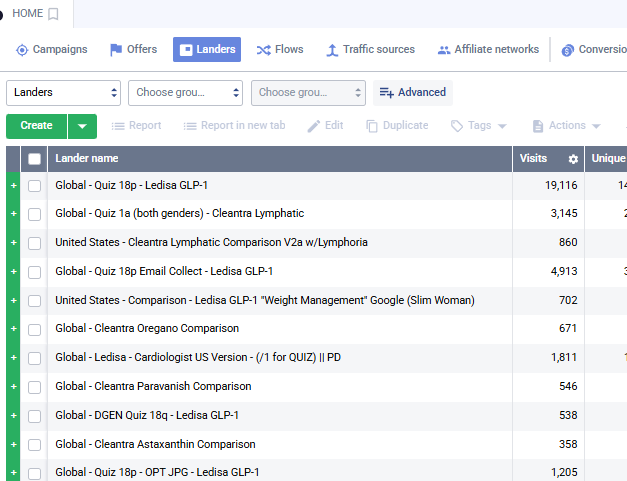
Step 1 — Navigate to Landers
- In the left sidebar, click "Landers"
- Click the "Create" button (or "Duplicate" an existing lander that's close to what you need — usually faster)
💡 Shortcut — Duplicate
Most of the time there's already a lander close to what you need. Select it in the list and click "Duplicate" in the top toolbar, then just update the URL, name, and tracking domain.
Step 2 — Fill In the General Tab
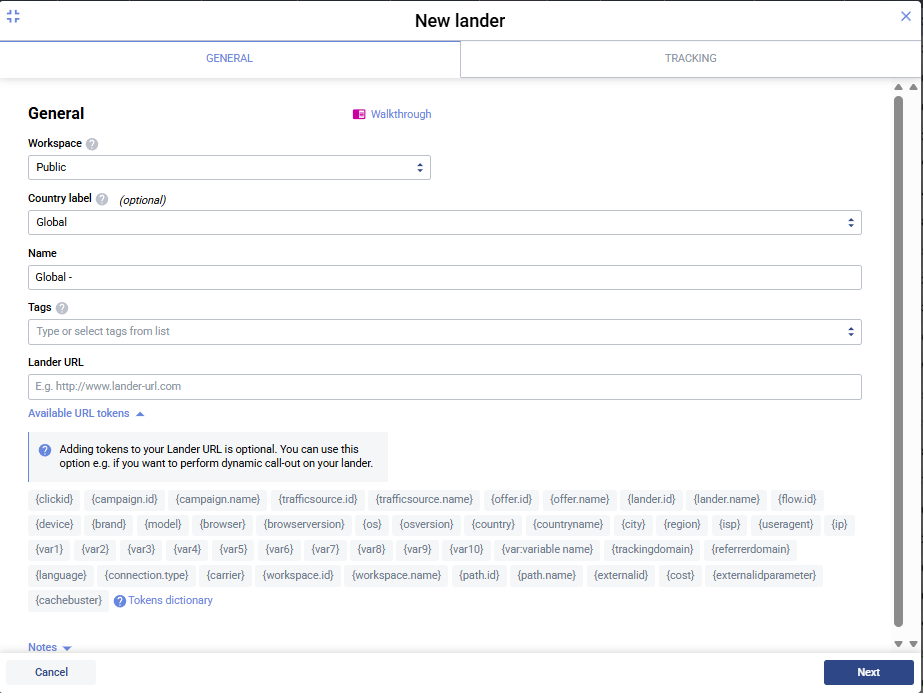
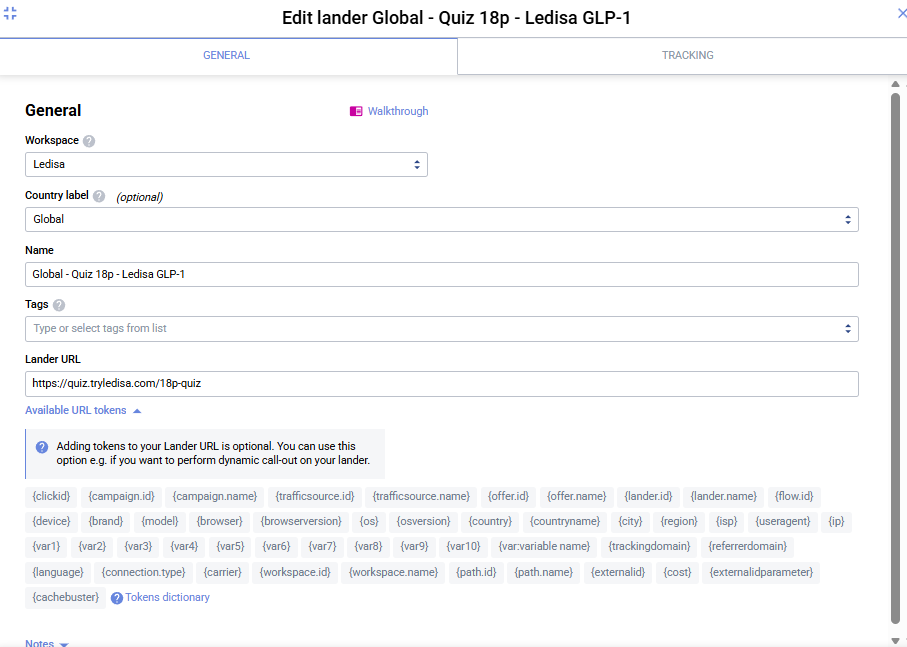
Workspace
Pick the workspace that matches the brand (e.g., Ledisa, Cleantra, Serabel, Wellanova, GL-ME, Celmor).
Country label (optional)
Set to match the lander's target GEO — usually Global or United States.
Name
Use the Acentecom lander naming convention:
[Country] - [Page Type + Version] - [Brand Product]Real examples from our account:
| Lander Name |
|---|
Global - Quiz 18p - Ledisa GLP-1 |
Global - Quiz 1a (both genders) - Cleantra Lymphatic |
Global - Cleantra Oregano Comparison |
United States - GL-ME Comparison V2d - 5 Products w/Bioma |
Global - Advertorial - Ledisa GLP-1 - Puri V1 - 11.04.26 | PD |
United States - Listicle DOPAMINE - 6 Reasons V3 |
Global - Wellanova Vitamin D3+K2 - Comparison |
Page types we use
In practice we run mostly two formats: Quiz and Comparison. Everything else is rare.
| Type | When to Use | Naming Example |
|---|---|---|
| Quiz ⭐ | Interactive funnel asking user questions before showing offer | Quiz 18p, Quiz 1a |
| Comparison ⭐ | Top-5 advertorial template — side-by-side product comparison, our main workhorse | Comparison V2d, Oregano Comparison |
Other formats used occasionally:
| Type | Notes |
|---|---|
| Advertorial (story-style) | Article-style pre-sell pages — rarely used standalone outside the Comparison format |
| Listicle | "X reasons why..." content — sporadic |
| Cardiologist / Expert | Authority-figure pages — edge case |
| Email Collect | Quiz variant that collects email before results — specific funnels only |
Lander URL
Paste the full URL of the landing page. There's no fixed convention — URLs vary across brands, domains, and page types. Just use whatever URL the brand team gives you.
No click ID on the lander URL
Don't add ?vlmcid={clickid} here — that token goes on the CTA buttons inside the page (Click URL, configured in Step 4).
Step 3 — Configure the Tracking Tab
Switch to the Tracking tab.
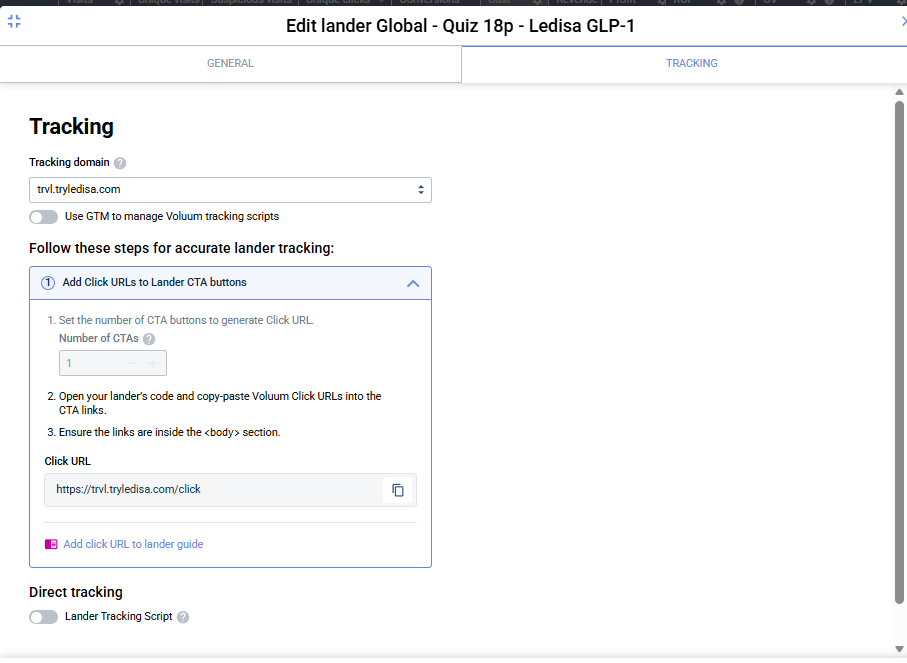
Tracking domain
Select the tracking domain that matches the brand. Our conventions:
| Brand | Tracking Domain |
|---|---|
| Ledisa | trvl.tryledisa.com |
| Cleantra | (matching trvl. subdomain) |
| Serabel | (matching trvl. subdomain) |
| Wellanova | (matching trvl. subdomain) |
| GL-ME | (matching trvl. subdomain) |
| Celmor | (matching trvl. subdomain) |
Match brand to tracking domain
The tracking domain must match the brand of the lander URL. A Ledisa lander uses trvl.tryledisa.com, not any other brand's domain.
Use GTM to manage Voluum tracking scripts
Leave off unless GTM is explicitly being used on a specific lander (rare).
Direct tracking — Lander Tracking Script
Leave off for redirect campaigns (the default setup for most of our traffic). Only turn on for Direct campaigns (Google Ads — see Creating a Campaign, Step 6).
Step 4 — Add Click URLs to Lander CTA Buttons
This is the critical step — without this, Voluum can't track clicks from the lander to the offer.
Get the Click URL
- On the Tracking tab, scroll to "Add Click URLs to Lander CTA buttons"
- Set Number of CTAs to how many click-through points your page has (usually 1)
- Voluum generates a Click URL, e.g.:
https://trvl.tryledisa.com/click- Click the copy icon to grab it
Implement on the lander
The dev team (or whoever owns the brand page) puts this URL as the href on every CTA button inside the <body> section:
html
<a href="https://trvl.tryledisa.com/click">Get Started</a>Critical — no Click URL = no tracking
Without the Click URL on the CTA, Voluum records visits but zero clicks. Conversions can't be attributed and the path breaks for multi-step funnels.
Step 5 — Save the Lander
- Click "Save"
- The lander is now available to attach to campaign paths