
Appearance
Split Testing
Split tests (A/B tests) let you distribute traffic across multiple paths, landers, or offers to find the best performer. Voluum supports splits at three levels — you can stack them in the same campaign.
Three Levels of Splits
| Level | What You're Testing | Where to Set It |
|---|---|---|
| Path-level | Different funnel flows (e.g., direct-to-SP vs. quiz-first) | Default paths section |
| Lander-level | Lander variants inside one path (e.g., JPG vs WEBP optimisations) | Landers block on the right when a path is selected |
| Offer-level | Different offers/variants inside one path | Offers block on the right when a path is selected |
Real Example — APPlovin - United States - Quiz US - Ledisa GLP-1
Here's the full traffic breakdown of one live campaign — two active paths, each with its own internal lander split:
CAMPAIGN TRAFFIC (100%)
│
├── PATH 1: Standard Sales Page — weight 60
│   │   (60% of total traffic)
│   │
│   ├── Default                     weight 40 →  40% of path  →  24% total
│   ├── Optimized first image JPG   weight 10 →  10% of path  →   6% total
│   └── Optimized first image WEBP  weight 10 →  10% of path  →   6% total
│
└── PATH 2: Email Collect Sales Page — weight 40
    │   (40% of total traffic)
    │
    ├── Email Collect (before transformation)   weight 30 →  75% of path  →  30% total
    └── Email Collect v2 (before profile res.)  weight 10 →  25% of path  →  10% total
A third path — Balance — exists in the campaign config but is disabled via toggle, so it receives no traffic right now.
Path-level split (Default paths)
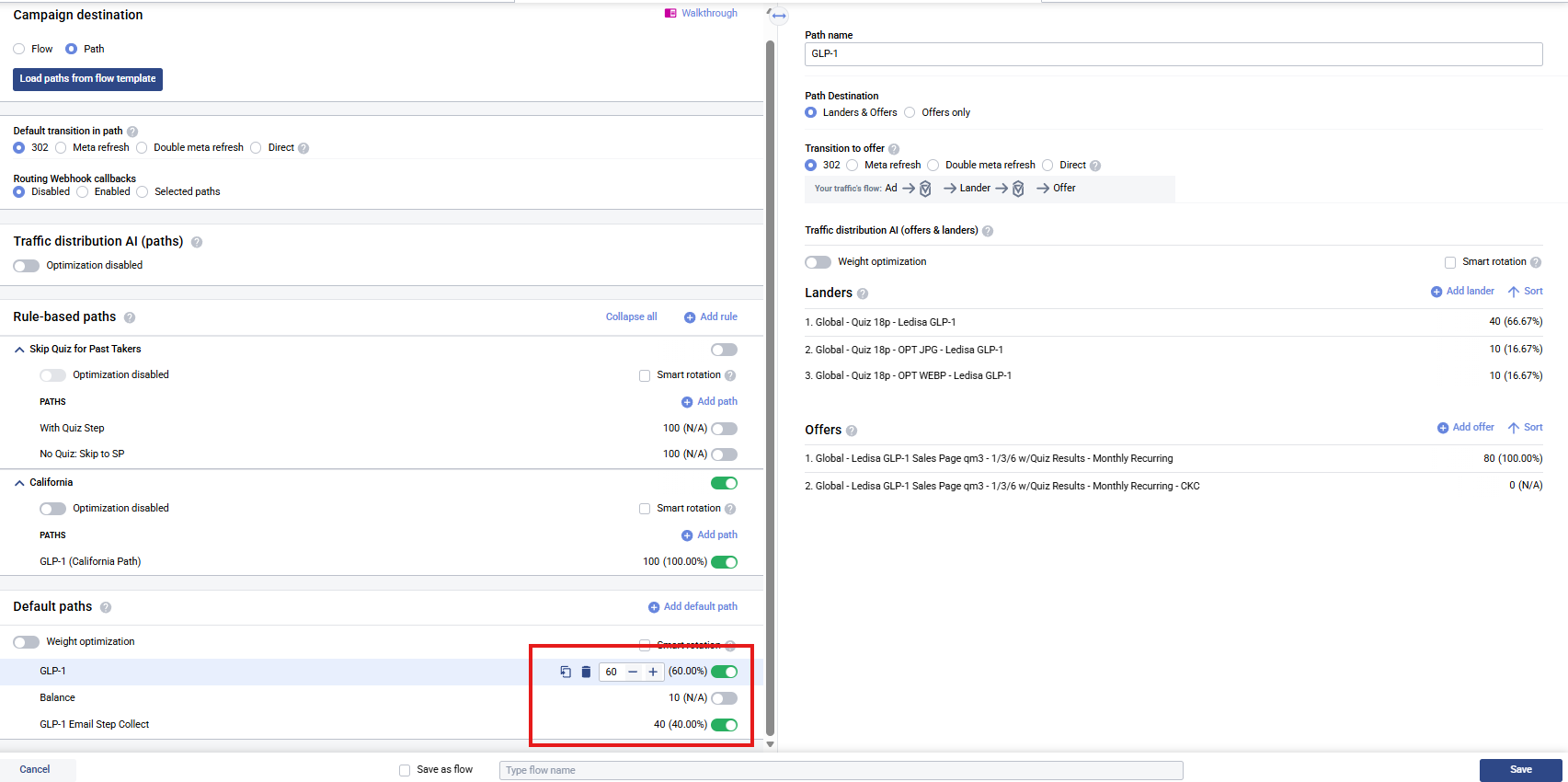
| Path | Weight | Share | Status |
|---|---|---|---|
| GLP-1 (Standard Sales Page) | 60 | 60% | Active |
| GLP-1 Email Step Collect (Email Collect Sales Page) | 40 | 40% | Active |
| Balance | 10 | — | Disabled (toggle off) |
Lander-level split — Path 1 (Standard Sales Page)
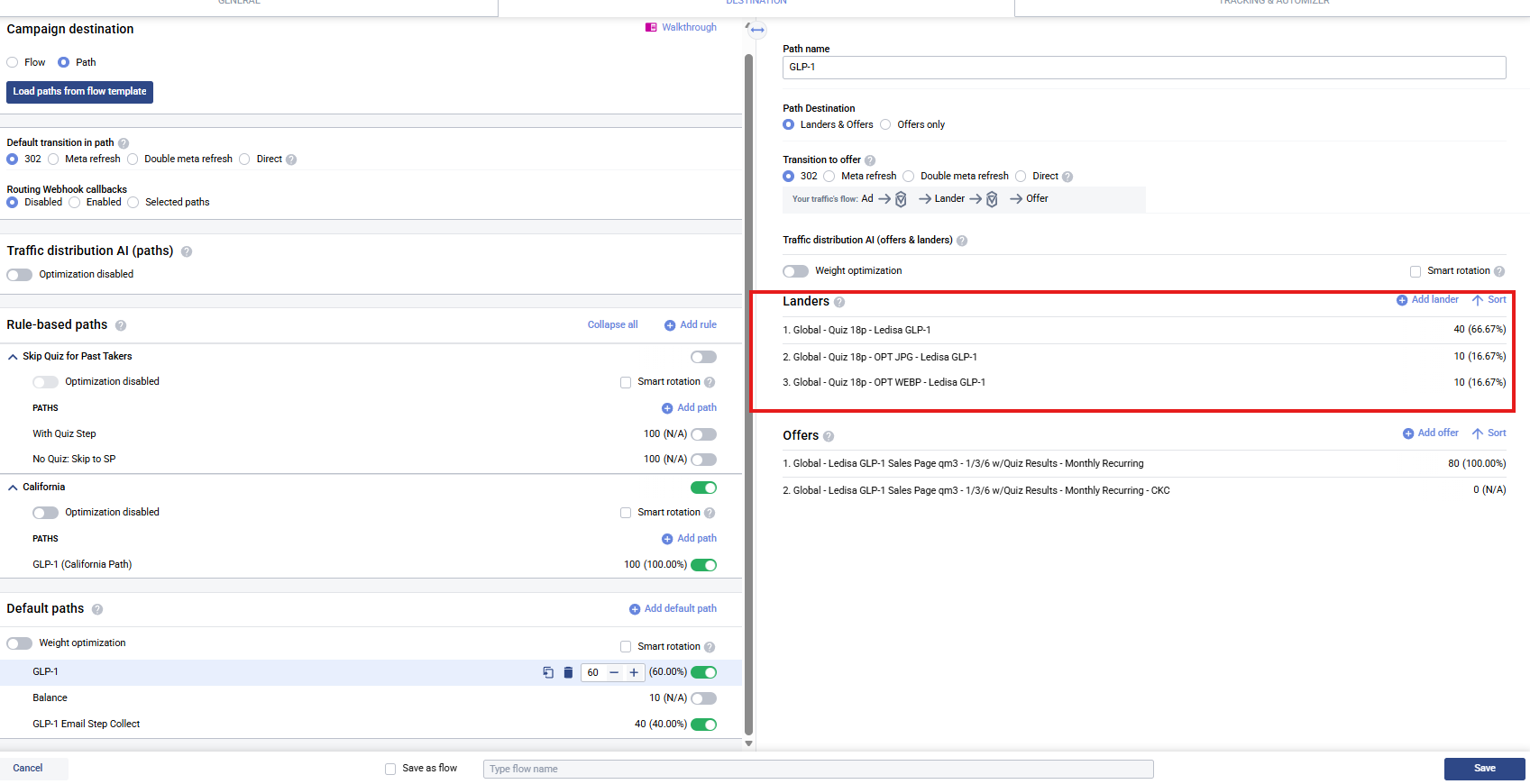
| Lander | Weight | Share of path |
|---|---|---|
| Global - Quiz 18p - Ledisa GLP-1 (default) | 40 | 66.67% |
| Global - Quiz 18p - OPT JPG - Ledisa GLP-1 | 10 | 16.67% |
| Global - Quiz 18p - OPT WEBP - Ledisa GLP-1 | 10 | 16.67% |
Main quiz gets 2/3 of this path's traffic; 1/6 each to image-format variants (JPG vs WEBP) to test load / conversion impact.
Lander-level split — Path 2 (Email Collect Sales Page)
| Lander | Weight | Share of path |
|---|---|---|
| Global - Quiz 18p Email Collect - Ledisa GLP-1 | 30 | 75% |
| Global - Quiz 18p Email Collect (before profile results) - Ledisa GLP-1 | 10 | 25% |
Two variants of the email-collect quiz — one shows the email step after the profile, the other before — tested 75/25 to see which placement collects more emails without killing conversion.
Offer-level split
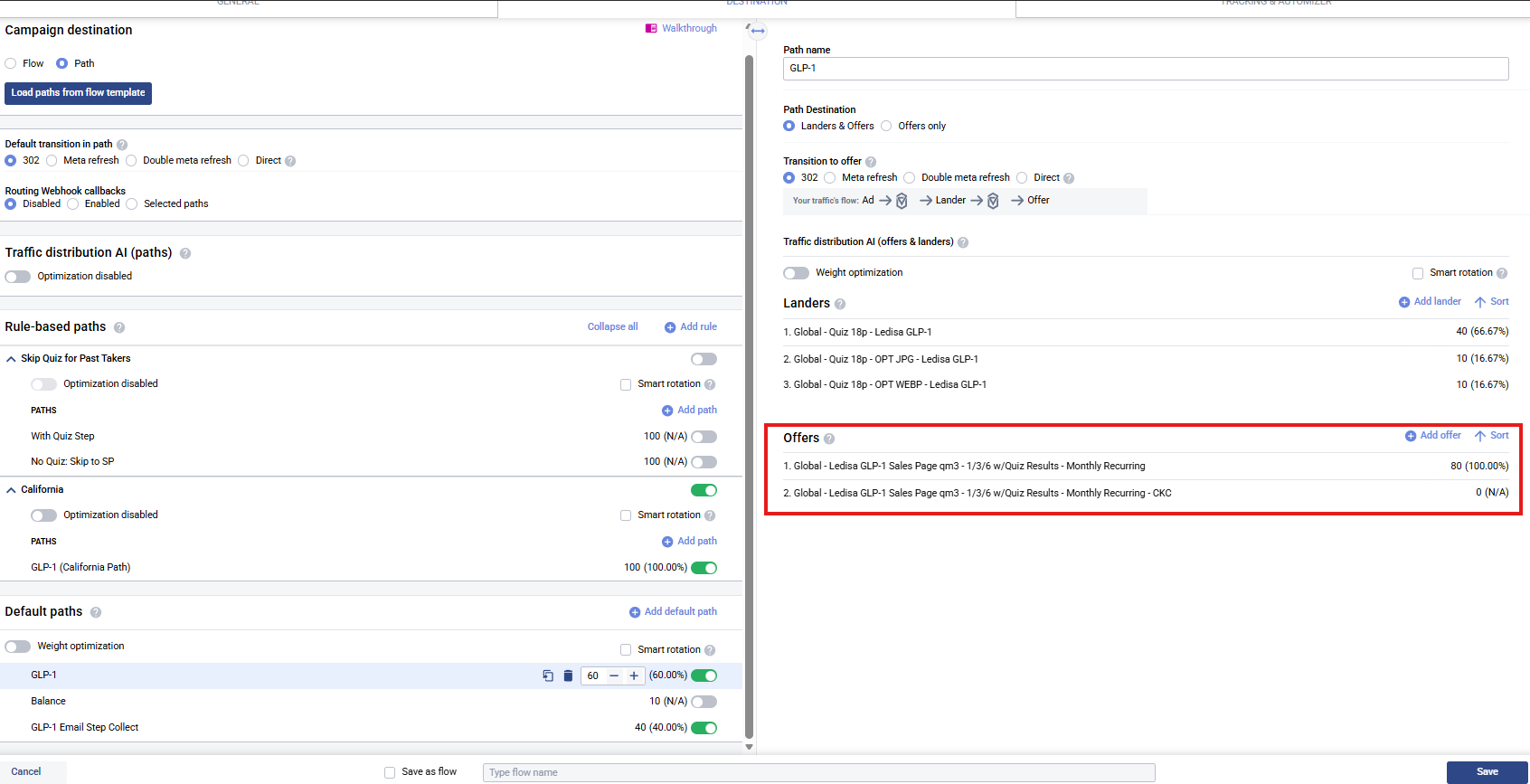
Both paths route to a single main offer (one Ledisa GLP-1 sales page variant per funnel), so there's effectively no offer-level split here — but you can add one using the same approach.
Weights don't need to sum to 100
Voluum uses weights as ratios, not percentages. 40/10/10 → 66.67% / 16.67% / 16.67%. 1/1/1 gives an even split. Weights are normalised inside each level — path-level weights split total traffic, then each path's landers/offers split that path's share.
Setting Up Splits
Step 1 — Open Campaign Destination
Open the campaign → Destination tab.
Step 2 — Path-Level Split (Default paths)
- In the Default paths section, click "Add default path" for each funnel variant you want to test
- Name each path clearly (e.g.,
GLP-1,GLP-1 Email Step Collect,Balance) - Set the weight on each row
- Use the row toggle (green = active, grey = paused) to pause a variant without deleting it
Step 3 — Lander-Level Split (inside a path)
- Click on a path on the left — the right panel shows its settings
- In the Landers block, click "Add lander" for each variant
- Set weight next to each lander
- For A/B: two landers at equal weight (e.g.,
50/50or1/1) - For multi-variant: weight to taste (e.g.,
40/10/10to give main lander the majority)
Step 4 — Offer-Level Split (inside a path)
Same process as landers, but in the Offers block:
- Click "Add offer" for each offer you want to test
- Set weight — typically one main offer (100%) with backup offers at weight 0 until you activate them
Traffic Distribution AI
Each path has a Traffic distribution AI section with Weight optimization and Smart rotation toggles.
We never use Weight Optimization
Leave both toggles off — always. At Acentecom we run manual weights on every campaign.
Weight optimization auto-shifts traffic to whatever variant is winning in real time, which sounds good but in practice:
- Locks in a false winner after a handful of early conversions (statistical noise)
- Starves the other variants of traffic before you have enough data to decide
- Makes split tests un-reproducible and reporting unreliable
Stick with manual weights. When you decide a winner, you move the weights. That's the workflow here — don't enable AI optimization.
Split Testing Tips
Best Practices
- Wait for statistical significance — target 100+ conversions per variation before picking a winner
- One variable at a time — only change one thing between variants (headline, image, CTA)
- Don't stop tests too early — day-of-week and time-of-day patterns skew short tests
- Track both CTR and CR — a higher CTR lander isn't always the winner (look at EPV / total revenue)
- Keep losers at weight 0 instead of deleting — easier to re-enable for follow-up tests